
Quick Tutorial
How to use SetSwipe
Our app incorporates familiar UI patterns for quick and intuitive use. Choose the swimmer profile that best matches your experience level, then follow the matching walkthrough below.
Profile 1
Beginner Swimmer
This path focuses on the simplest way to get moving: set preferences, learn swimming terms, and find or create your first workout.
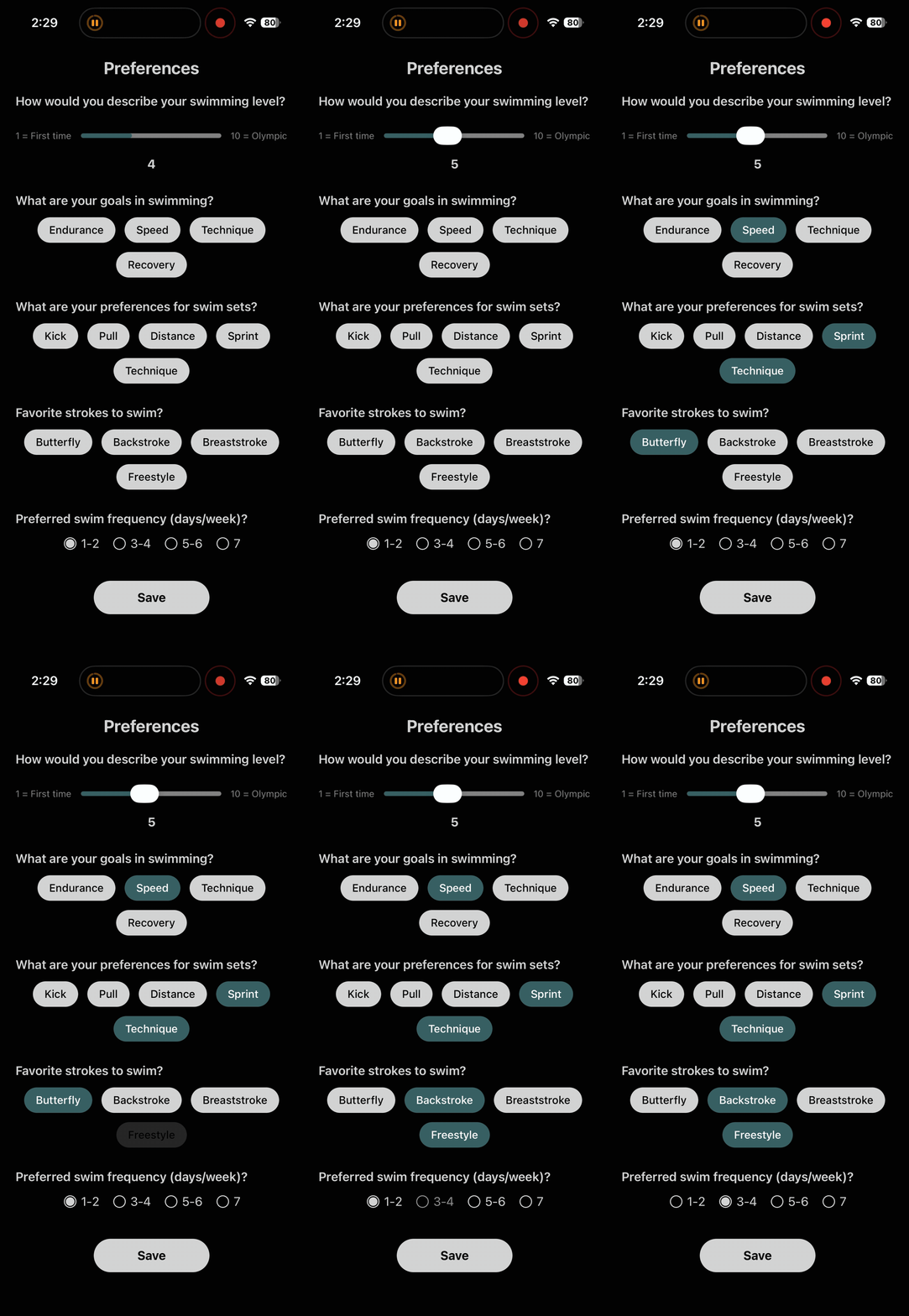
Select your swimming preferences
Upon signing up, a new user will be presented with a page to select their workout preferences. The application then targets workouts toward each user’s specific goals and skill level.
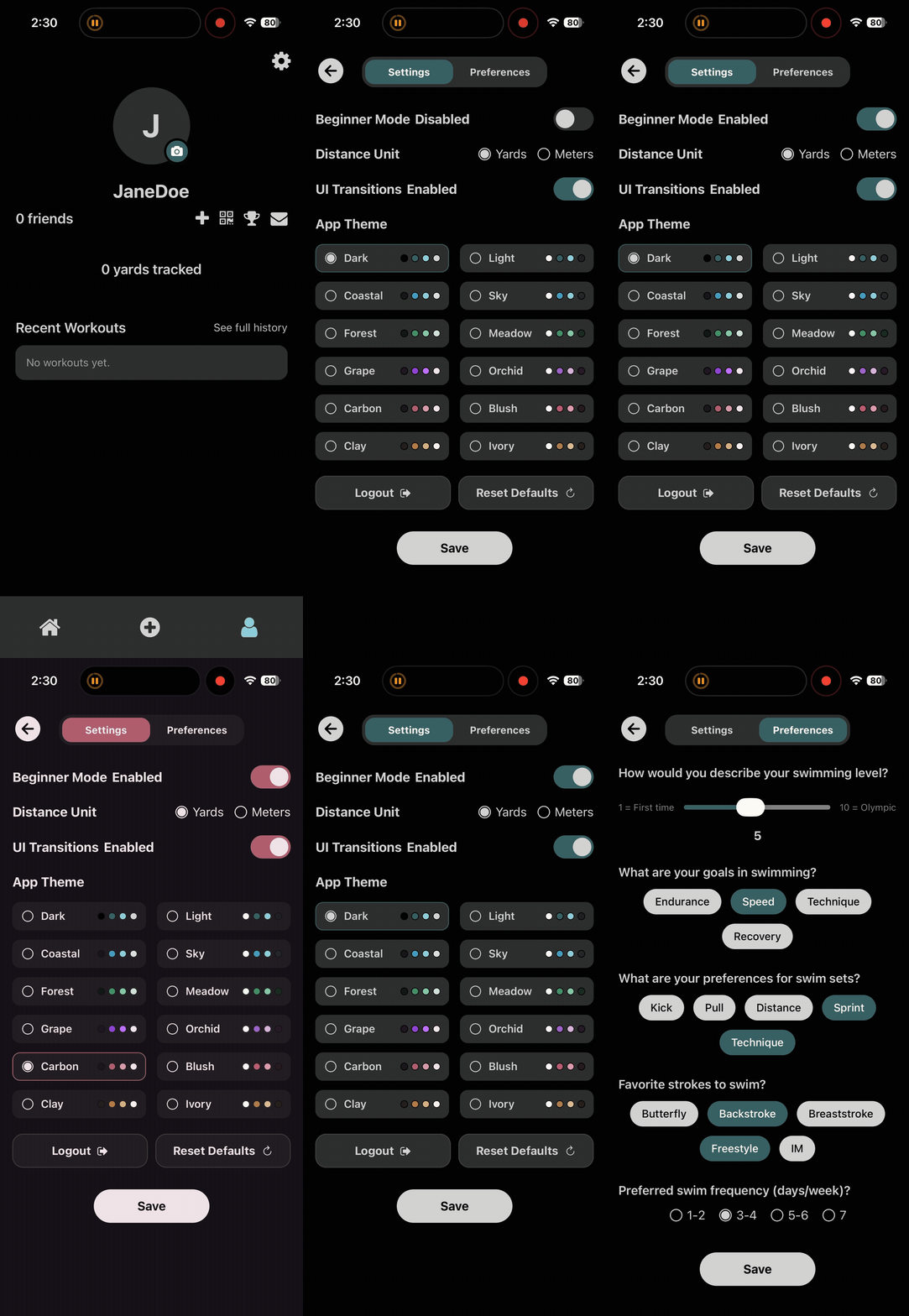
Change the view and complexity of the app
In the settings page, the user can toggle beginner mode, distance metric, UI transitions, and the theme of the app. “Beginner mode” simplifies pages and defines more complicated terminology, without reducing the functionality of the application.
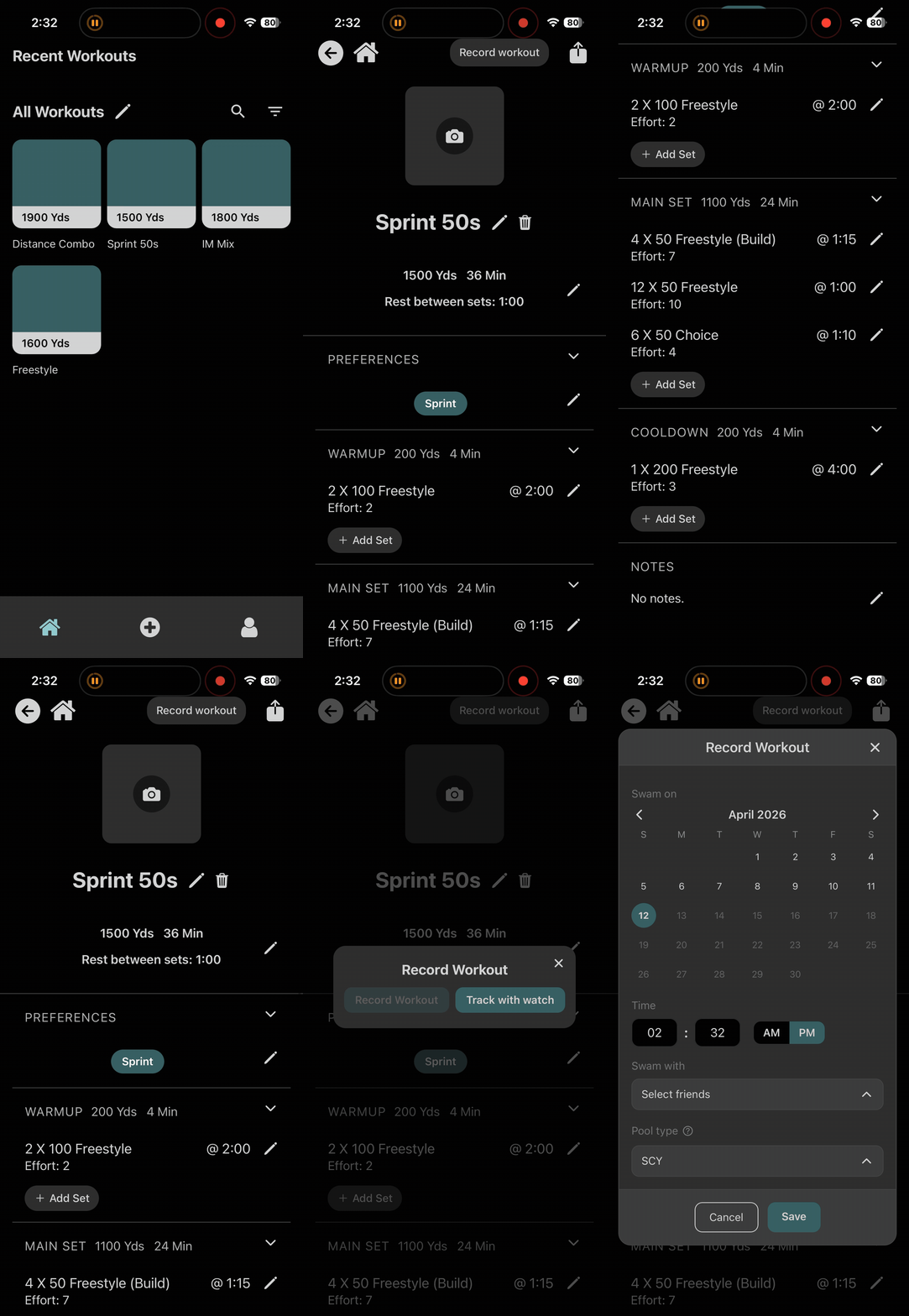
View and track your workouts
From your library, you can filter workouts by attribute, search for specific ones, or click on any of the workouts to view more details. From here you can record the workout, indicating that you have completed this workout. On certain pages, select the “?” icon to learn more about swimming terminology.
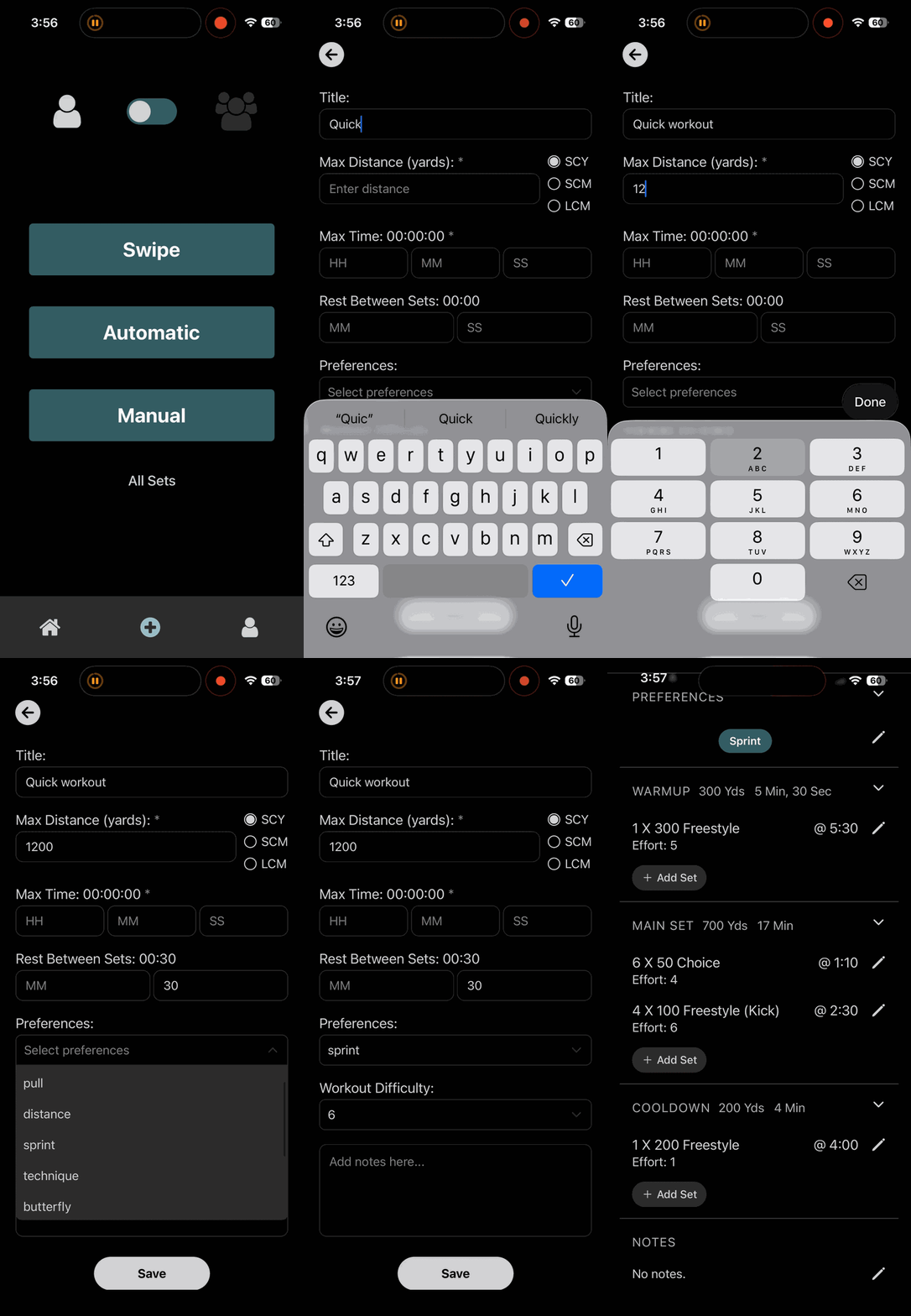
Automatic workout creation
The simplest way to generate a new workout is with the “automatic” generation. This allows you to enter the maximum time and/or distance that you want to swim for and what you want to focus on. A workout will then be generated that is tailored to your preferences.
Profile 3
Experienced Swimmer
This path is for swimmers who already know their pace and want to move quickly. It highlights workout and set customization as well as live workout tracking.
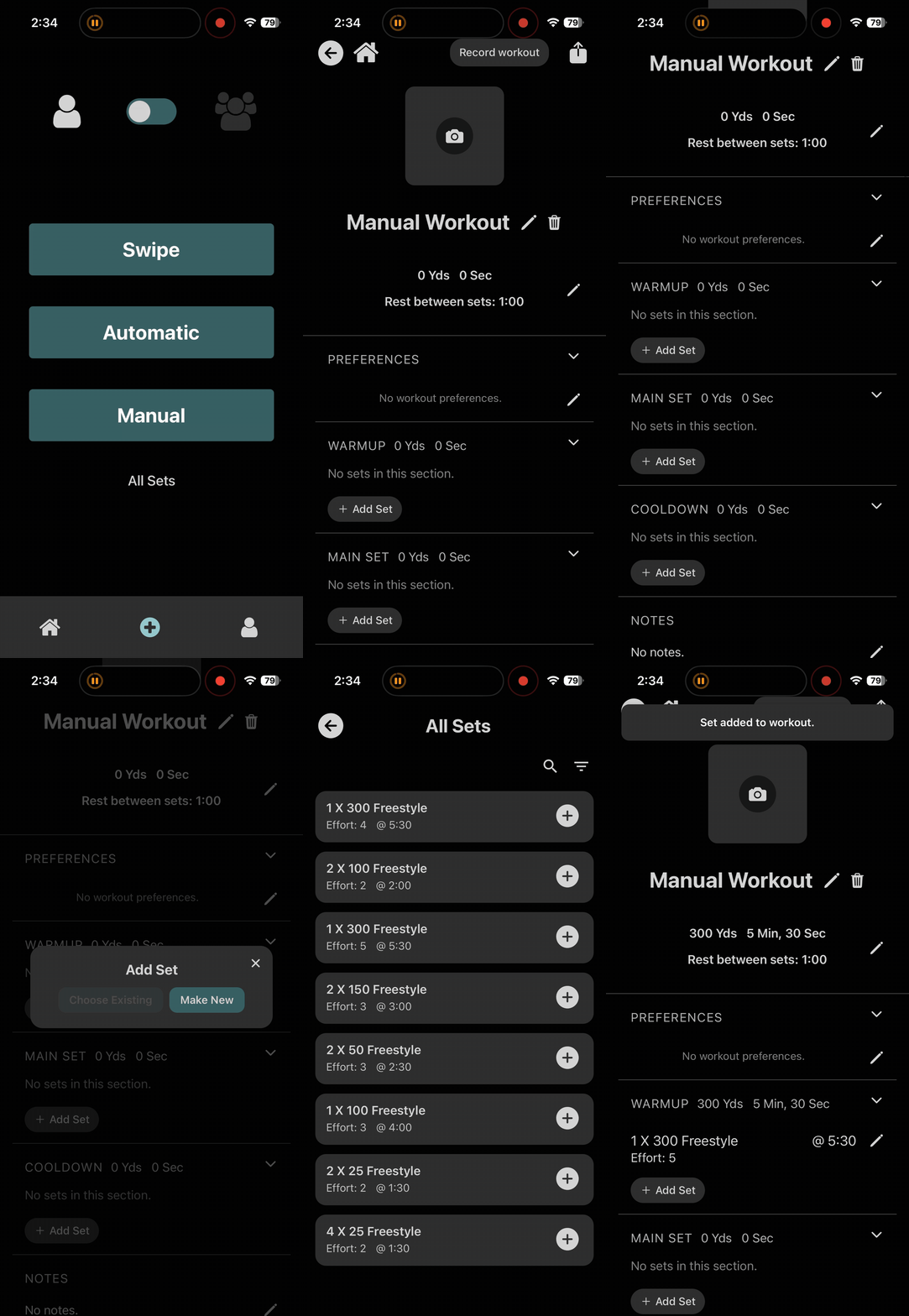
Manual workout creation
Creating a manual workout allows for maximal control and customization. Select this option from the create workout page, then fill it in with sets from your library or create a new custom set.
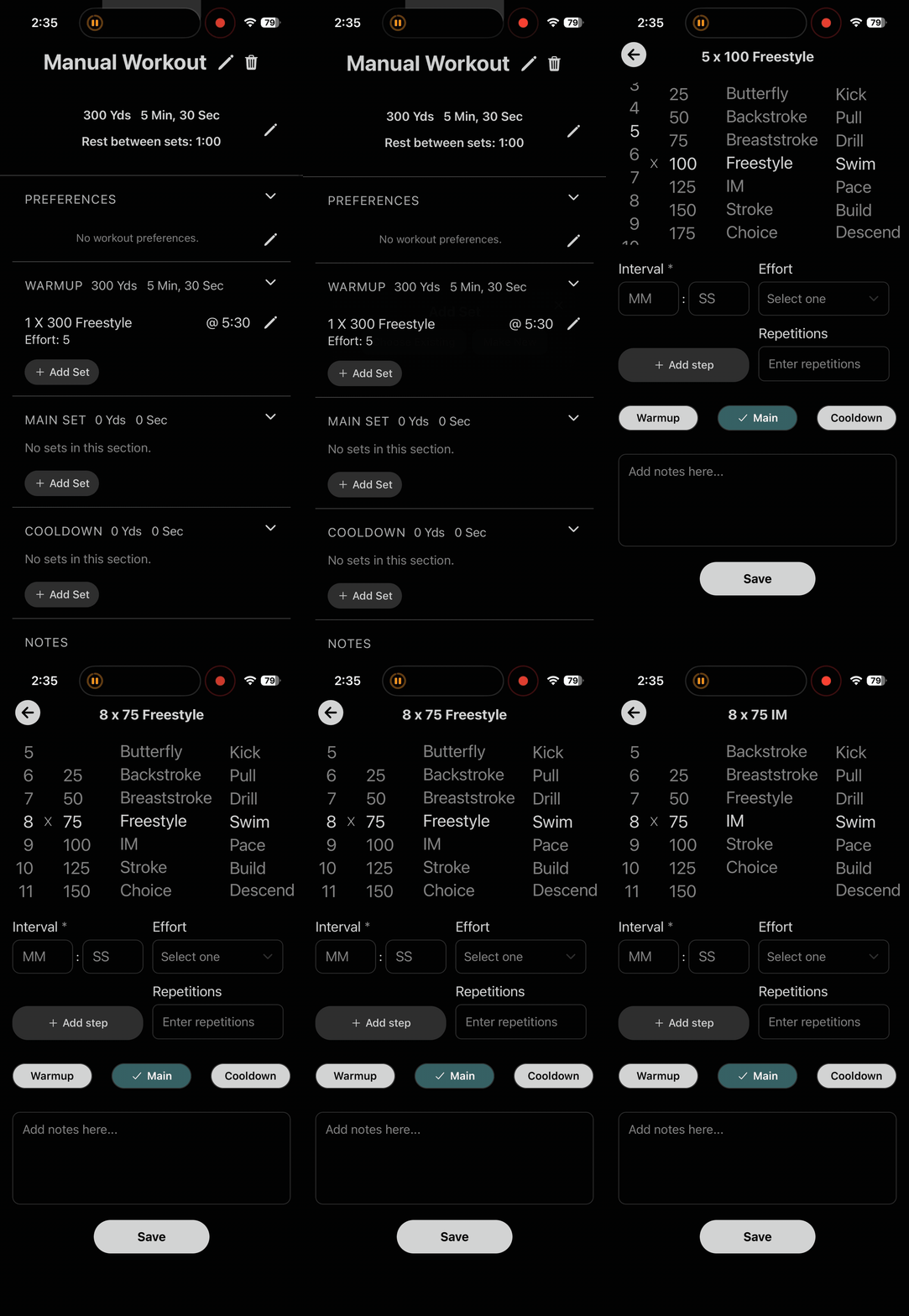
Adding a set to a workout
When creating a custom set, fill in the number of repetitions, distance, stroke, style, interval, and effort. You can also group “steps” together to keep them connected in the workout.
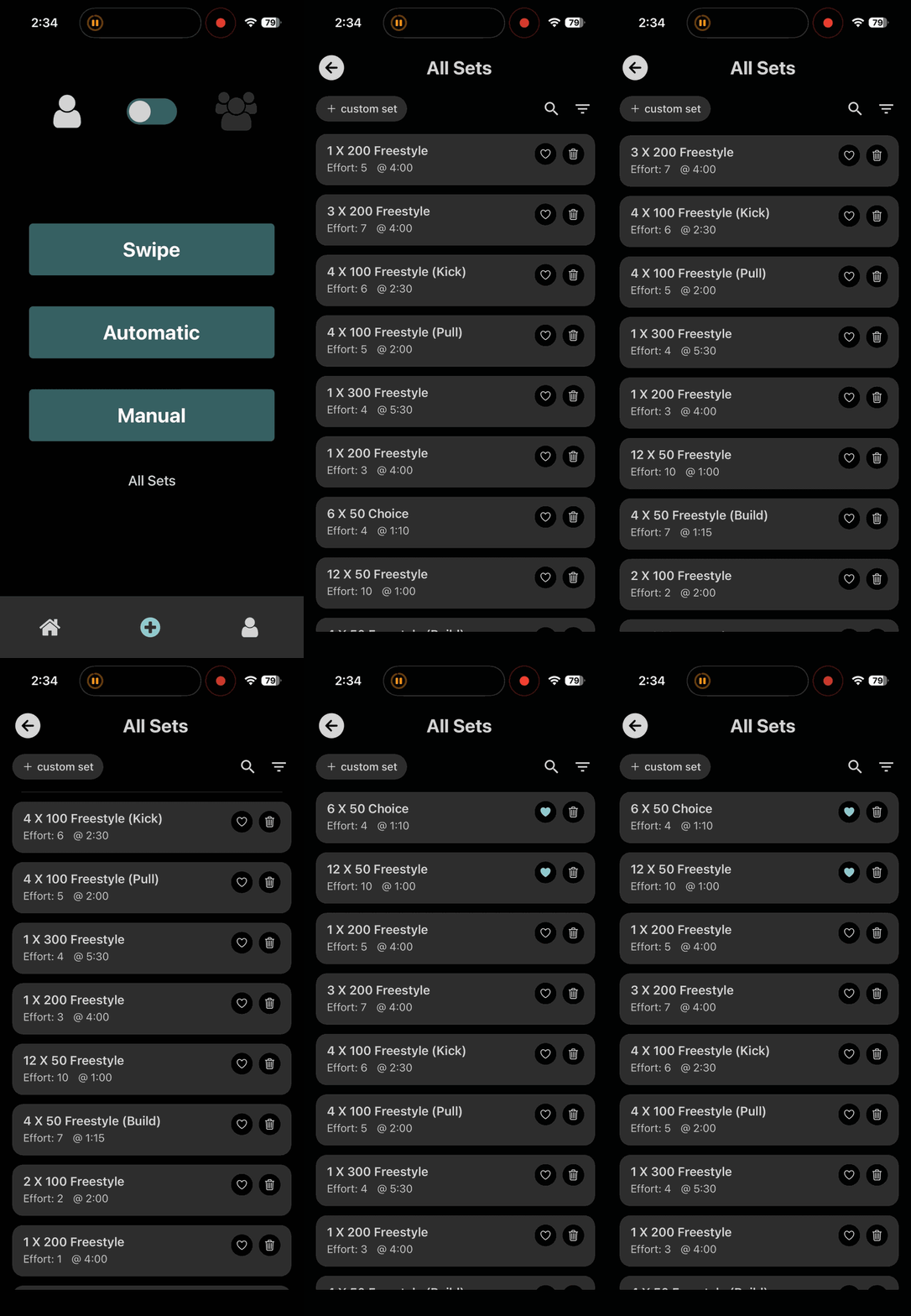
View and edit your collection of sets
View the all sets page to delete sets, favorite them, and create new ones. Your favorite sets will show up more frequently when generating workouts by swiping or with automatic creation.
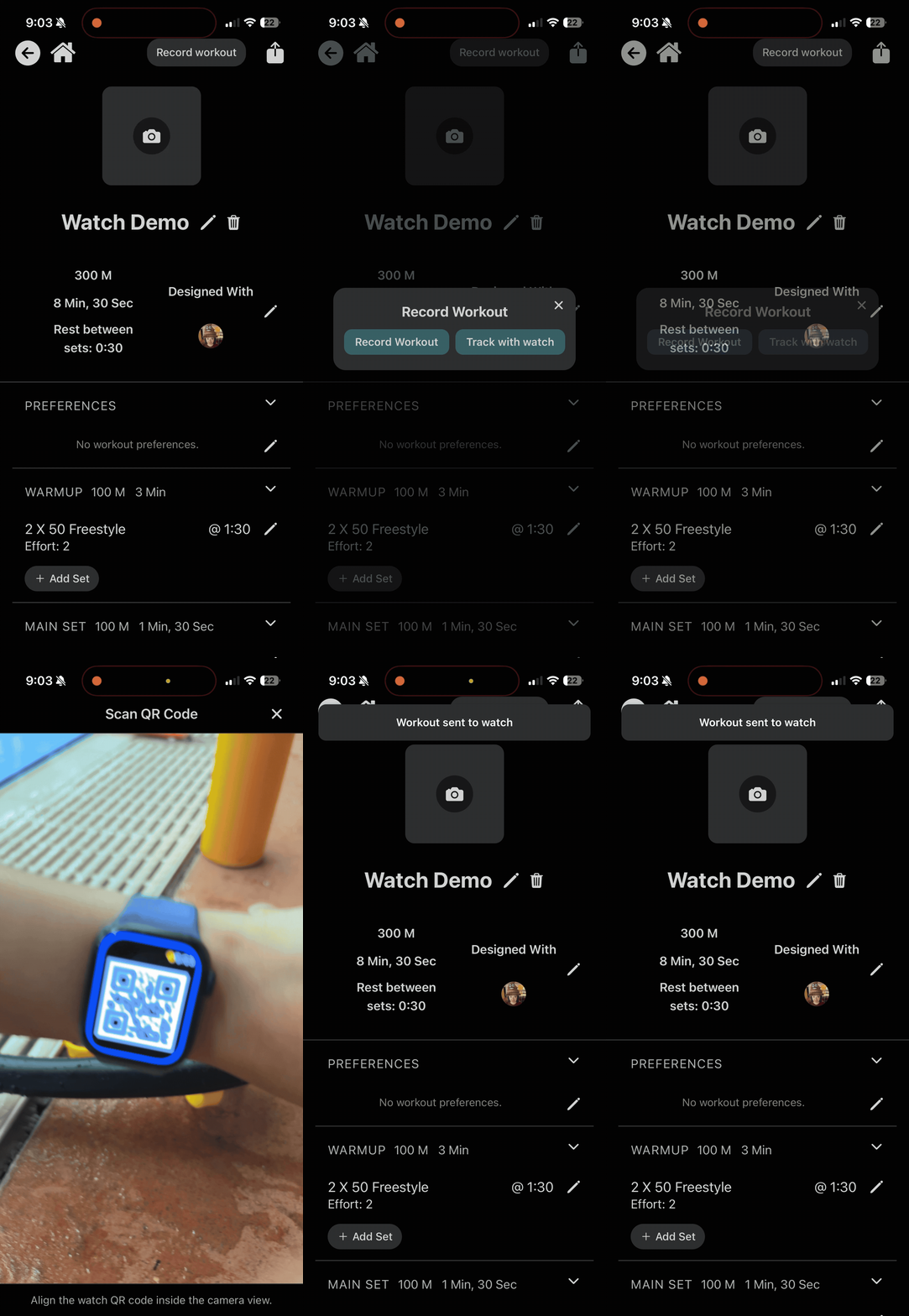
Record a workout on your Apple watch
At the pool, click “Record workout” then “Track with watch” to view the workout live on your Apple watch. This application tracks your distance to keep you updated in real time about your pace, then sends the completed workout back to your phone to show in your history.
Profile 4
Watch Tutorial
The watch companion allows live workout viewing, including an on-pace/behind-pace indicator.
Record a workout on your Apple watch
At the pool, click “Record workout” then “Track with watch” to view the workout live on your Apple watch. This application tracks your distance to keep you updated in real time about your pace, then sends the completed workout back to your phone to show in your history.
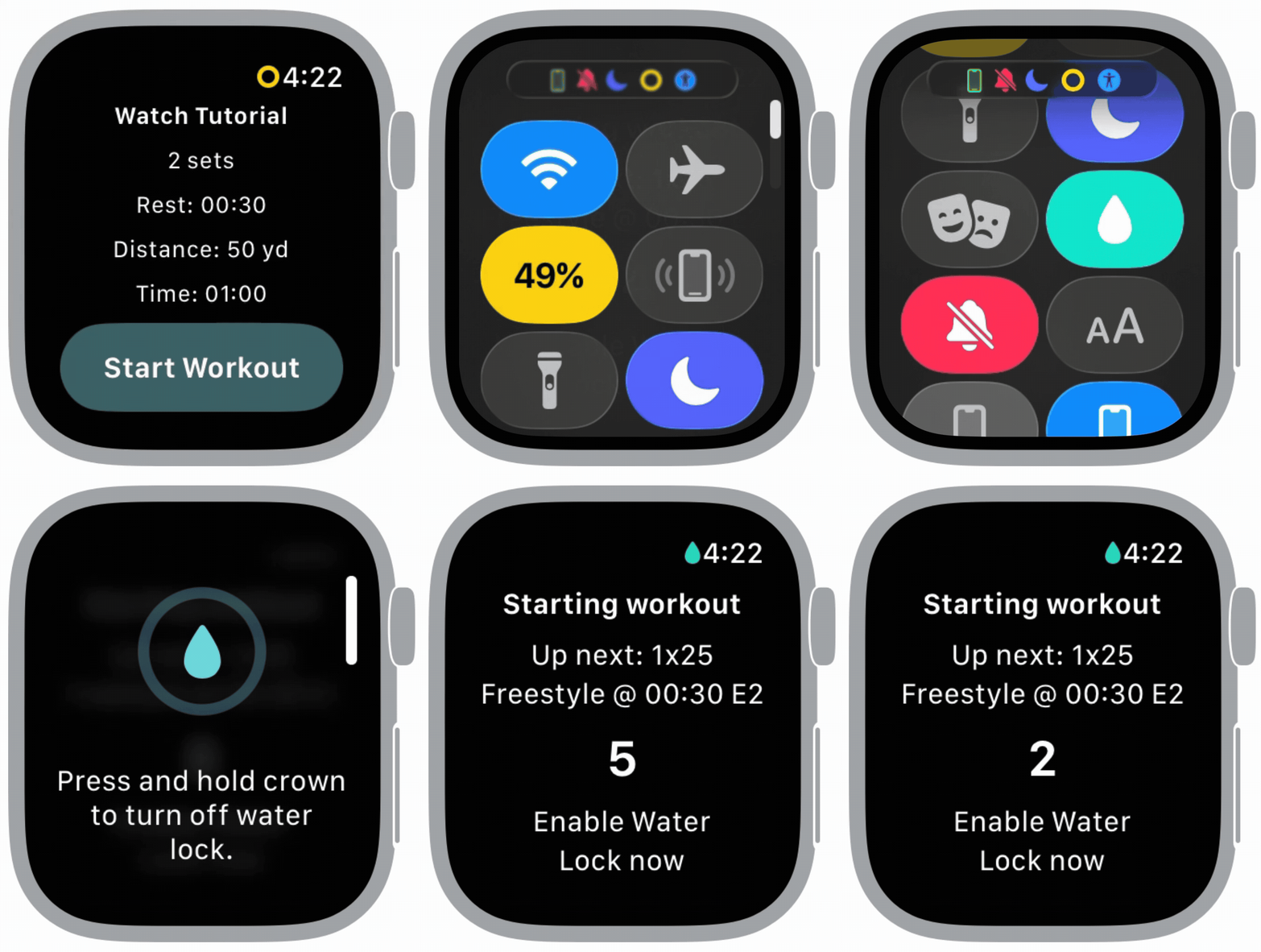
Start the session
Enable water lock and get ready to swim by previewing the first set.
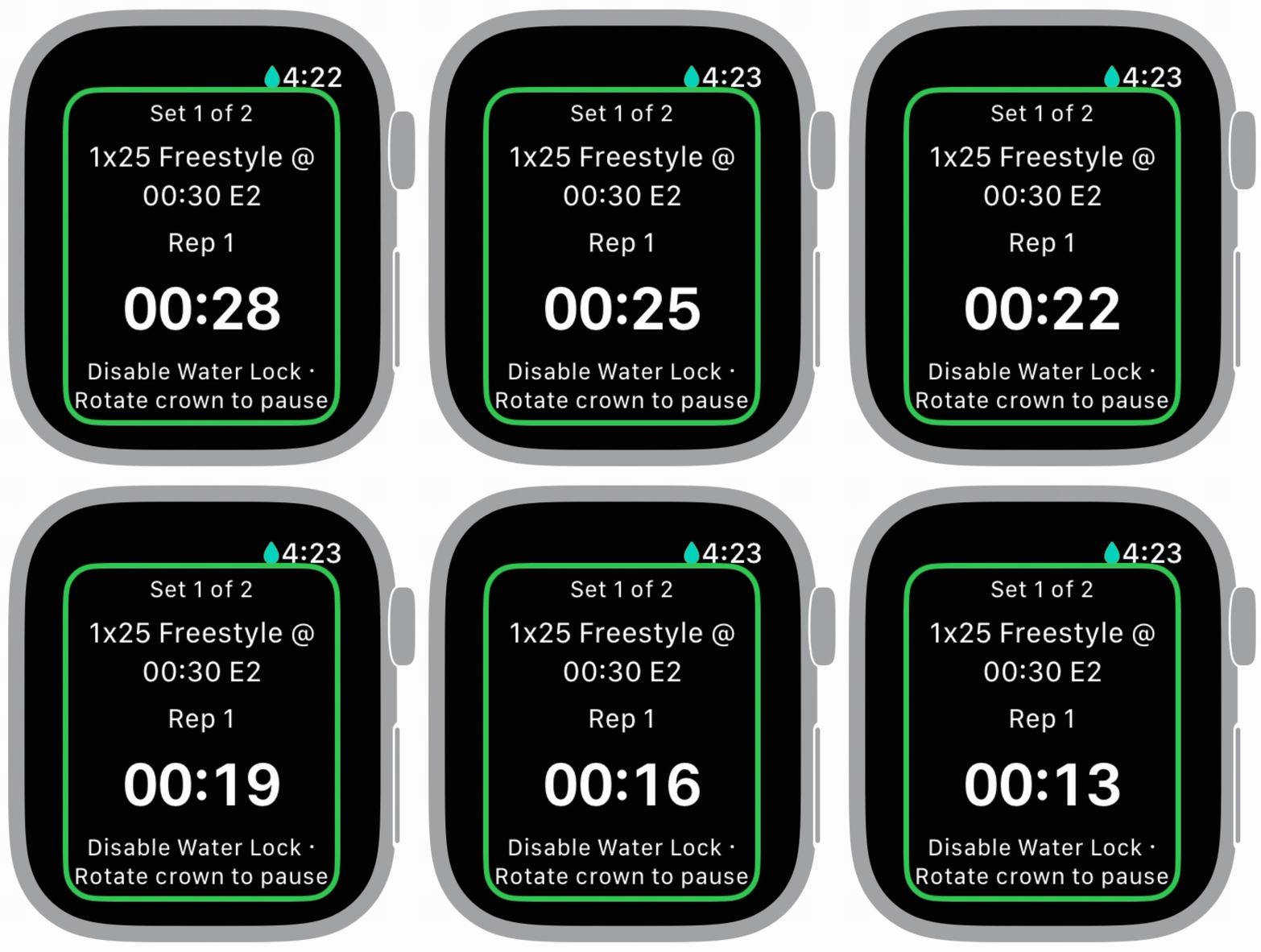
View a set
View information about the set, including reps, effort and interval while you swim.
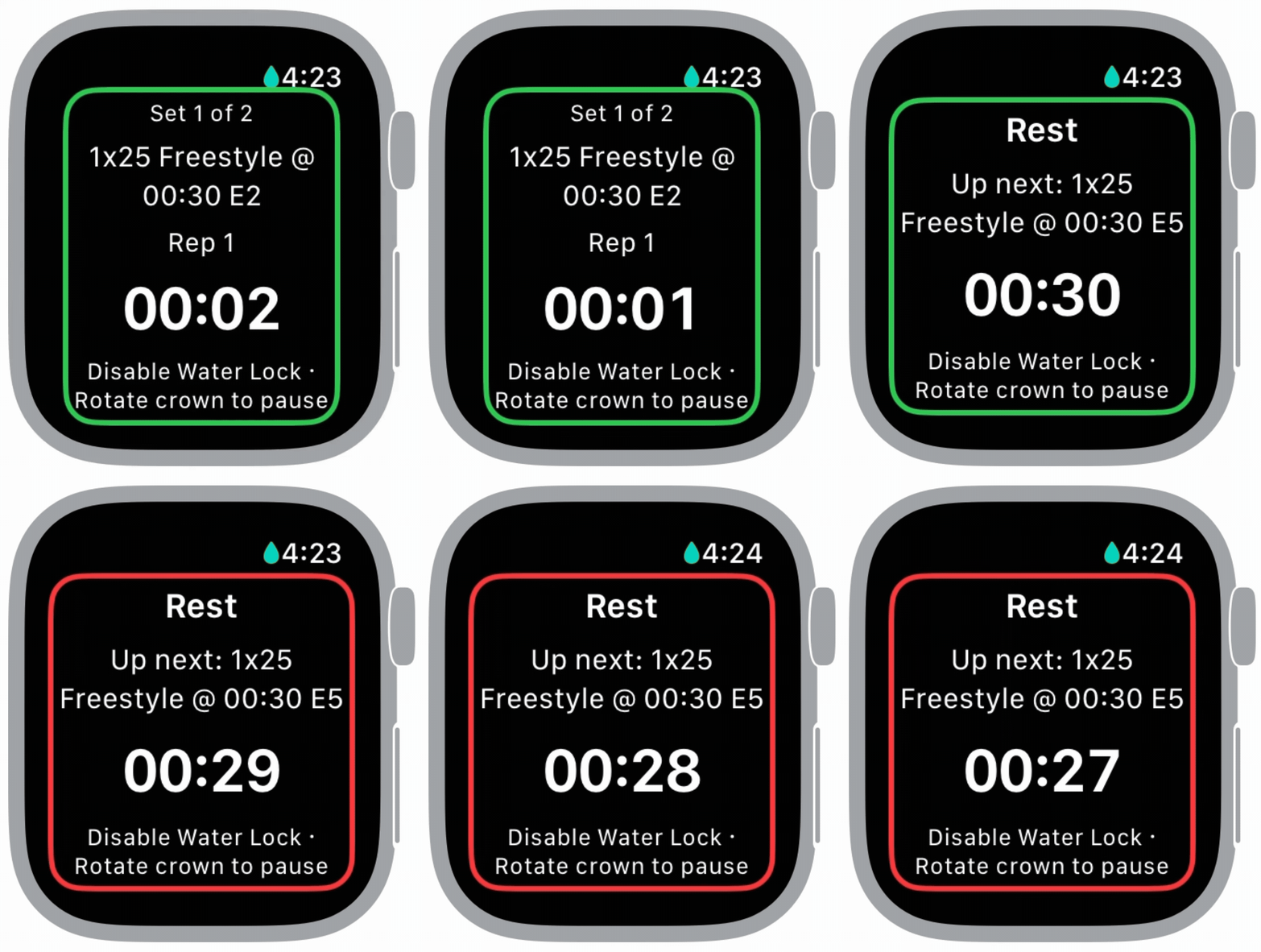
Pace indicator
A green ring indicates you are on pace, while a red one indicates behind pace.
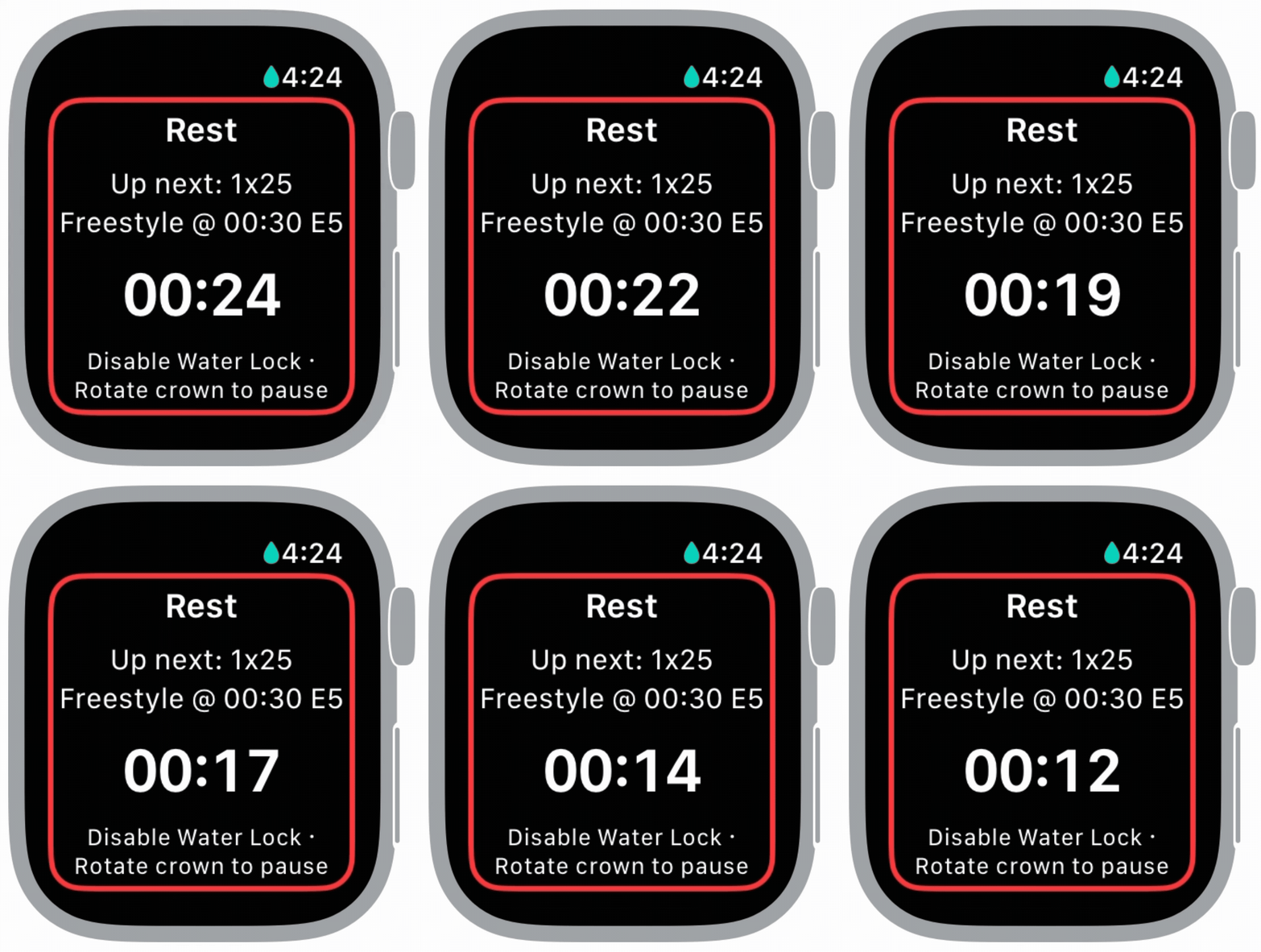
View rest
See a countdown of how much rest you have left, as well as the upcoming set.
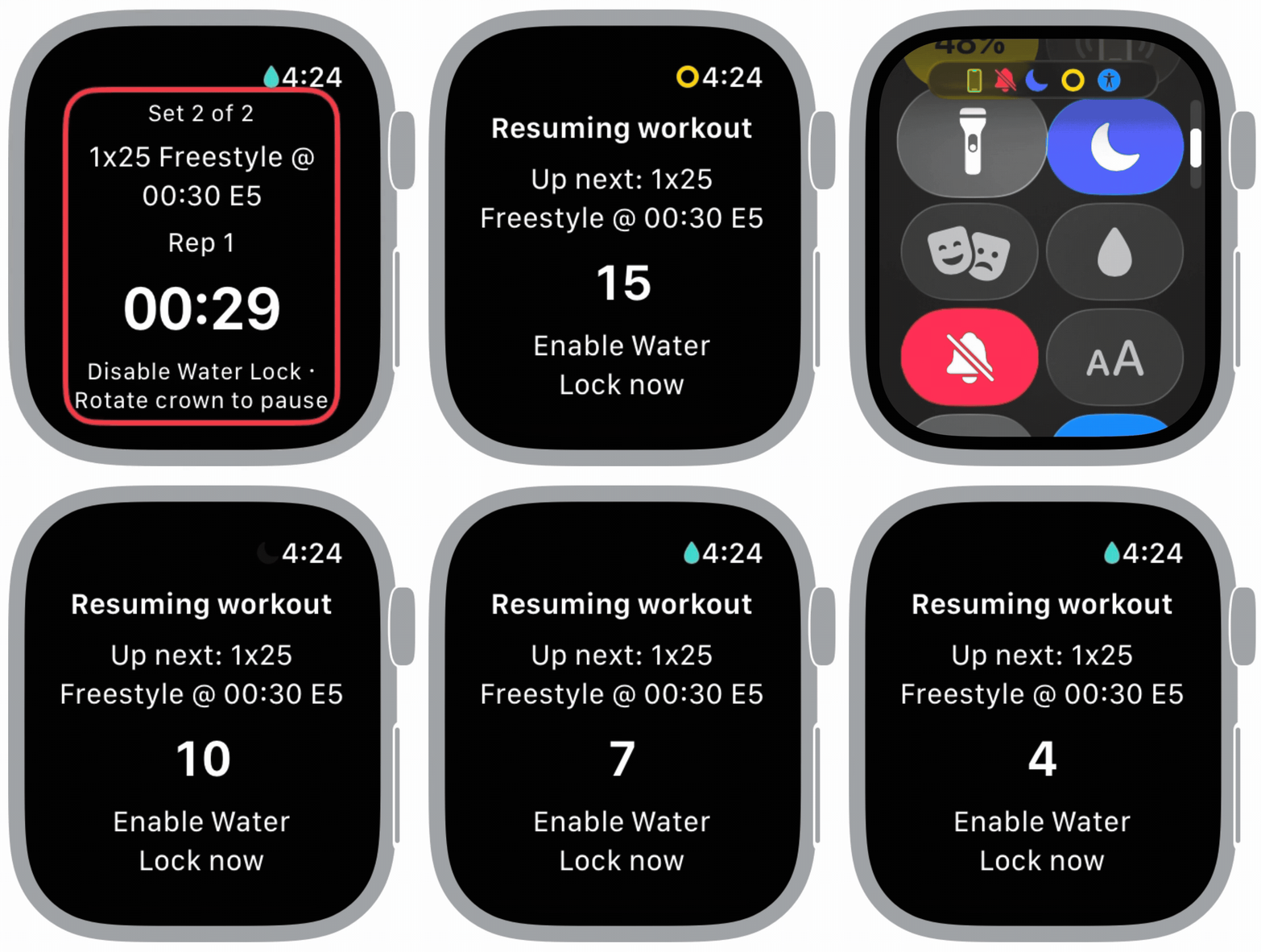
Pause or end cleanly
Hold the crown to disable water lock, then rotate and select an option to pause, resume, or end the session when you need a quick break or a finished workout.
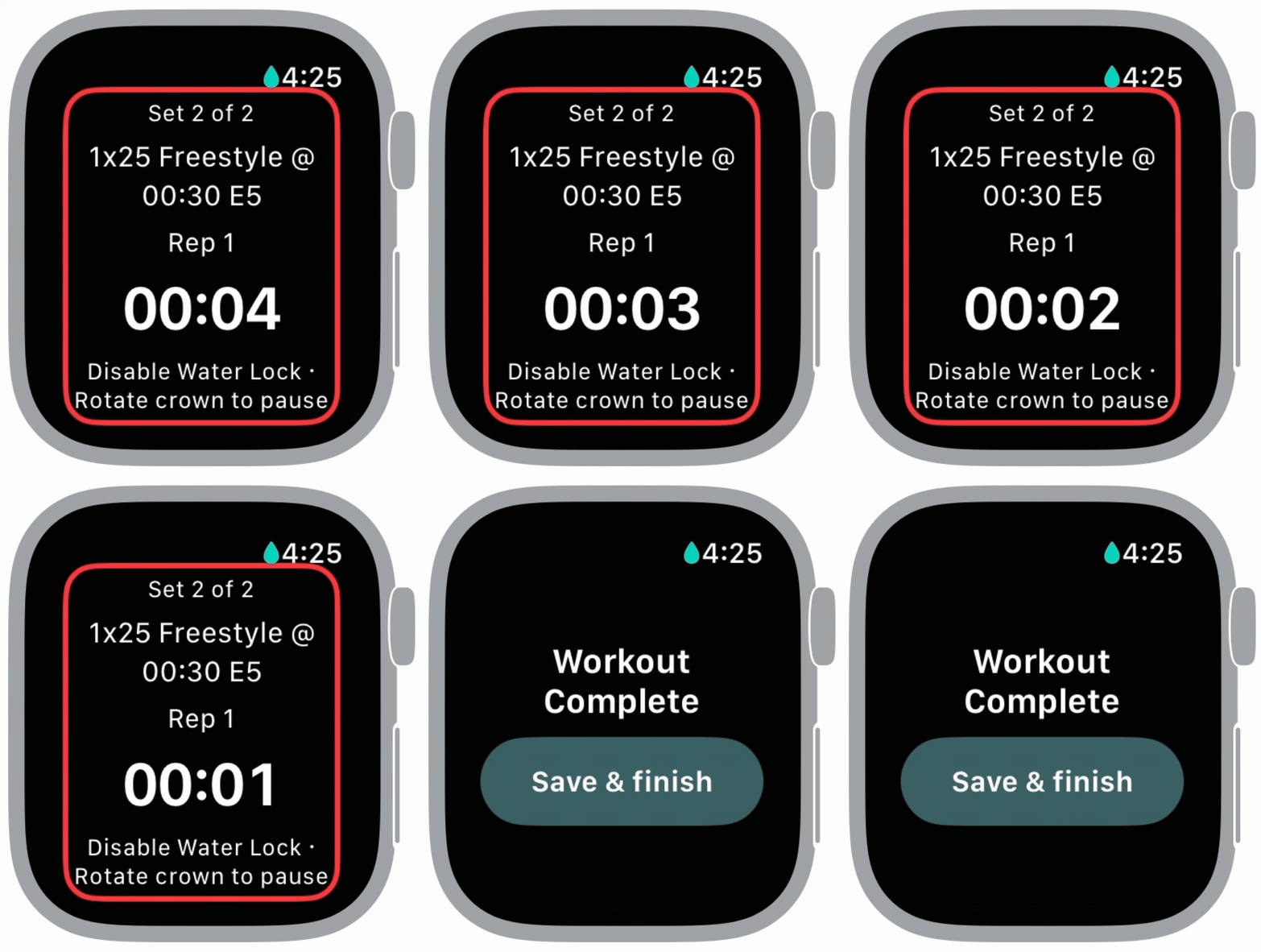
End workout
Hold the crown to disable water lock, then select "Save & Finish" to end the workout and add it to your workout history.
Profile 2
Social Swimmer
This path is built around workouts with friends. It highlights adding friends, creating workouts together, sharing workouts, and competing with friends.
Add friends
There are multiple ways to send a friend request to another user on our application. Enter their username when prompted, scan their QR code, or add them from a friend’s profile.
Swipe workout generation
Create a workout collaboratively by selecting friends from the dropdown. Wait for everyone to join the lobby, then click “Start Swiping.” Each swimmer will swipe yes or no on sets they do or do not want to complete. The final workout will be created by selecting the most popular sets amongst participants.
Share an existing workout
From the workout page, you can text, print, or share a workout with your friends directly through the app. When sending a workout through the app, you have the option to either send them a copy, or add them as a collaborator.
Compete with friends
From your profile, you can view the leaderboard to see the stats of your friends. Compare how far you and your friends have swum this week, this month, or of all time. Also, keep an how many consecutive weeks each friend has reached their target swimming frequency.